
How to Listen to the OSWW Podcast on your podcast app
Want to lisen to our podcast on the platform of your choice? First, sign in and go to your SUPPORTER PERKS and copy your RSS link (Can't find it? CLICK HERE).
How to add a rss podcast link to Apple podcasts
How to Listen to the OSWW Podcast on your podcast app
Apple Podcasts on iPhone or iPad
-
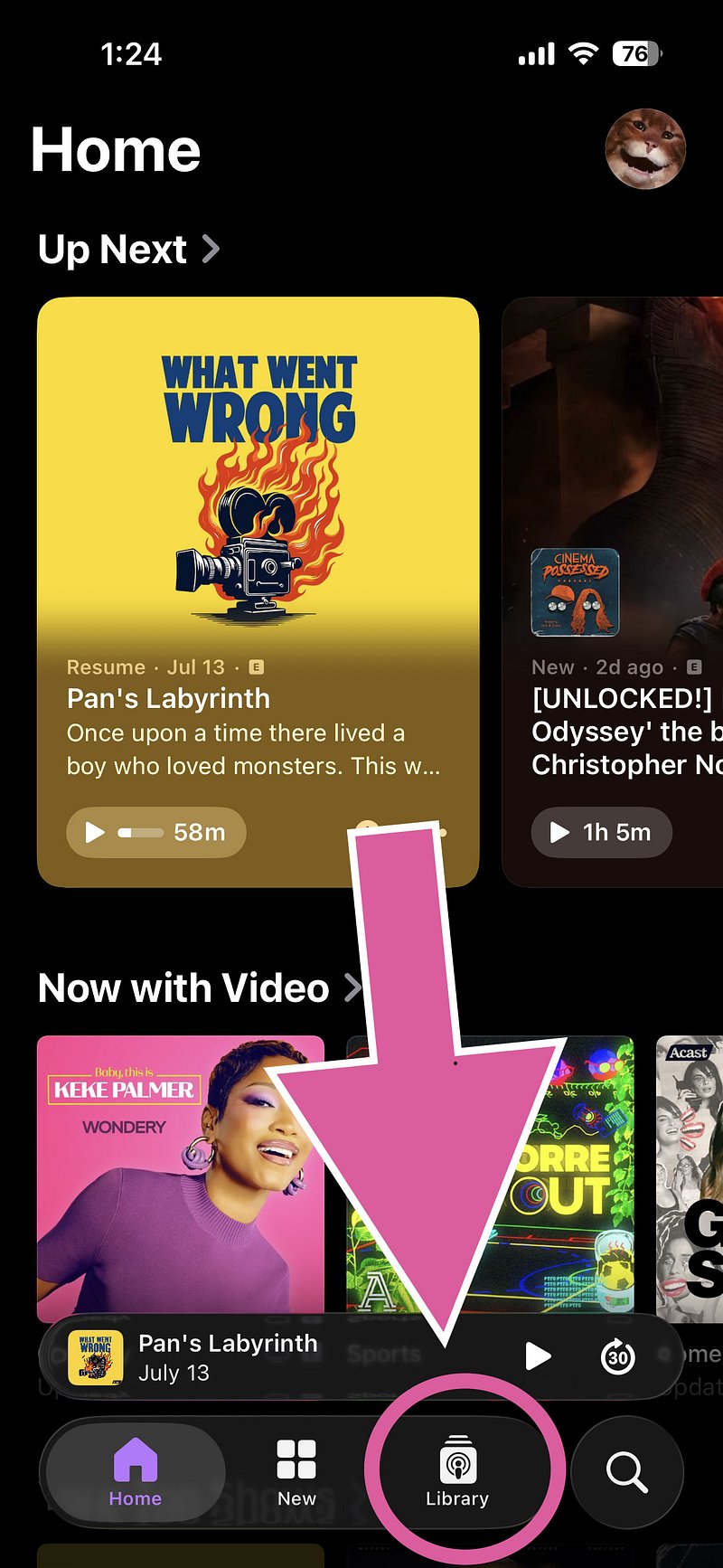
Open the Apple Podcasts app.
-
Tap Library.
-
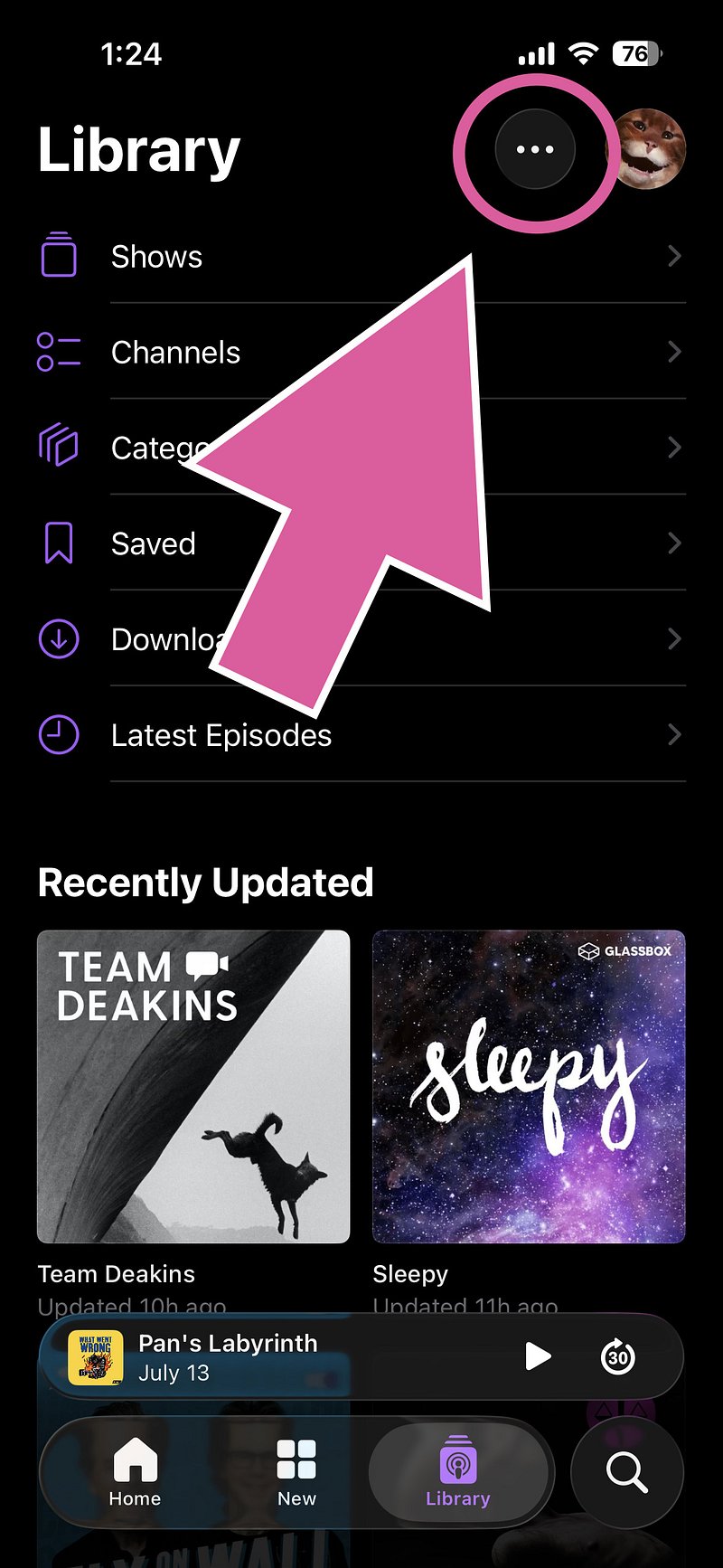
Tap the More button.
-
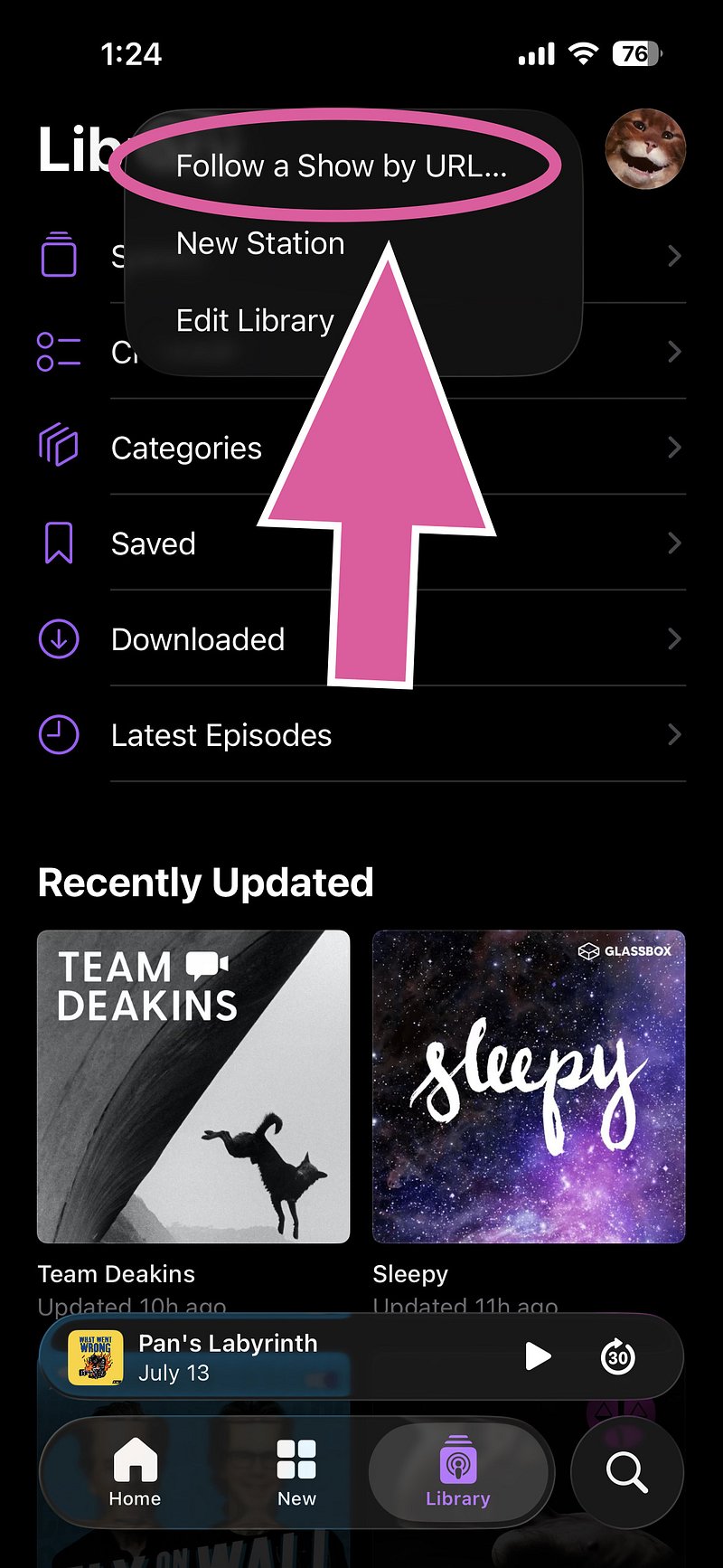
Select Follow a Show by URL.
-
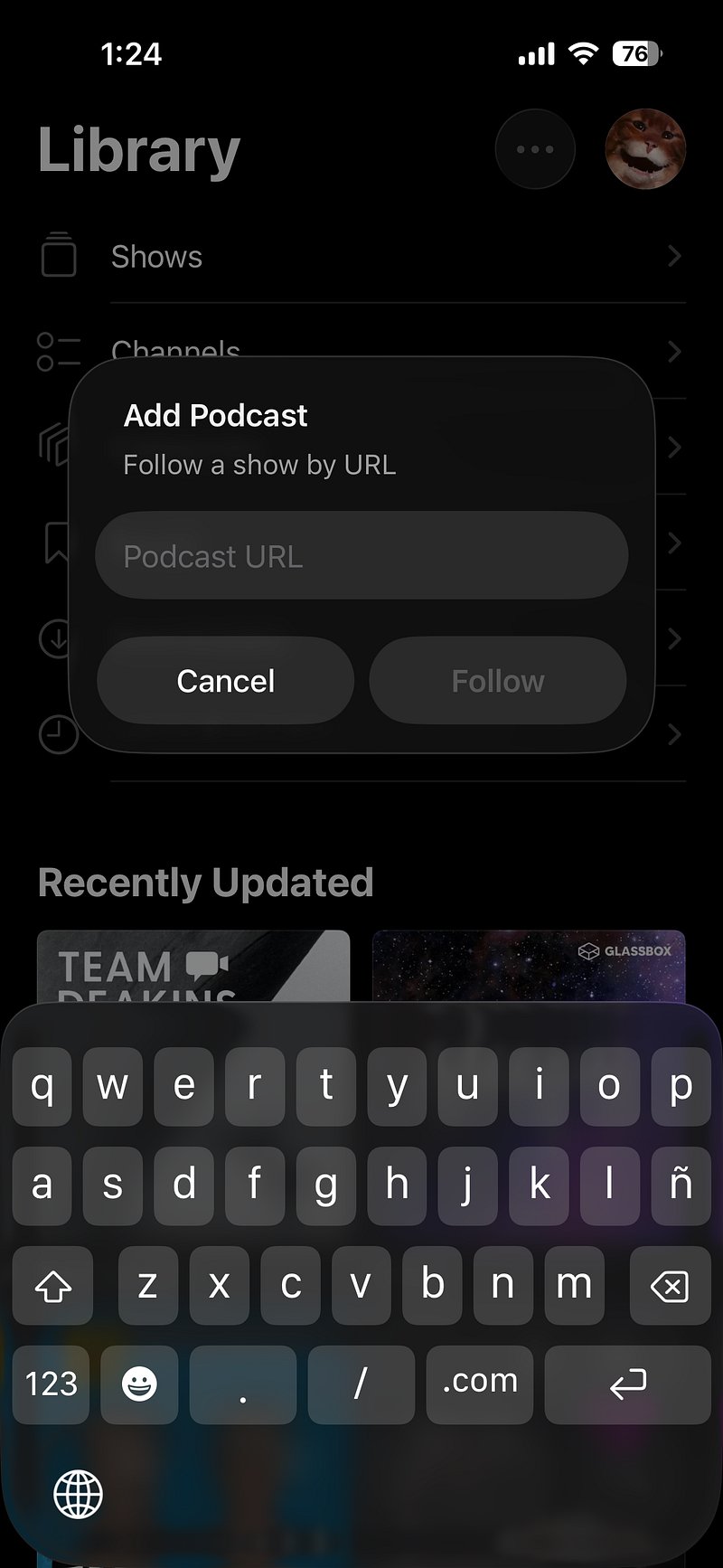
Paste the RSS feed link.
-
Tap Follow.
Apple Podcasts on Mac
-
Open the Apple Podcasts app.
-
In the top menu, click File.
-
Select Follow a Show by URL.
-
Paste the RSS feed link.
-
Click Follow.
Pocket Casts
-
Open Pocket Casts.
-
Go to Podcasts or Discover.
-
Paste the RSS feed link into the search bar.
-
Search for the feed.
-
Tap the show when it appears.
-
Tap Subscribe or Follow.
YouTube Music
-
Open the YouTube Music app.
-
Tap Library.
-
Tap Podcasts at the top of the screen.
-
Tap Add podcast.
-
Choose Add a podcast by RSS feed.
-
Review and accept the disclaimer.
-
Paste the RSS feed link.
-
Tap Add.
The podcast may appear right away, but in some cases it can take a little time to show up in your library.
Overcast
-
Open Overcast.
-
Tap the + button.
-
Select Add URL.
-
Paste the RSS feed link.
-
Tap Add.
Castbox
-
Open Castbox.
-
Go to the search bar.
-
Paste the RSS feed link.
-
Search for the feed.
-
Tap Subscribe.
Note: Some password-protected or members-only feeds may not work in Castbox. If you have trouble, try Apple Podcasts, Pocket Casts, Overcast, or Podcast Addict instead.
Podcast Addict
-
Open Podcast Addict.
-
Tap the + button.
-
Select RSS Feed.
-
Paste the RSS feed link.
-
Tap Add.
Downcast
-
Open Downcast.
-
Tap Add.
-
Select Add Podcast Manually.
-
Paste the RSS feed link into the Feed field.
-
Tap Subscribe.